The following are instructions are a basic example of a State Supplemental Payment (SSP) certification.
Kenny Parton applied for disability benefits. He is getting $943 in SSI. He is single and shares a house with his brother. He declares $500 in a bank account as his only resource. Kenny Parton does not have Medicare.
Use the Appendix C-1 to compare income and resources to determine eligibility for benefits that provides the most benefits. Begin with SSP, then QMBP.
Since Kenny does not have Medicare, eligibility for SLMB or QI-1 are not considered. Certify for SSP and add Disabled State Supplement and Medical Assistance to his benefits on the household tab.
If you certify the B section (money payment), the system will automatically certify the medical with the same information.
NOTE: If the client requested medical to go back three months, the medical benefit would need to be certified first and cleared. Then the case can be refreshed and the SSP benefit certified.
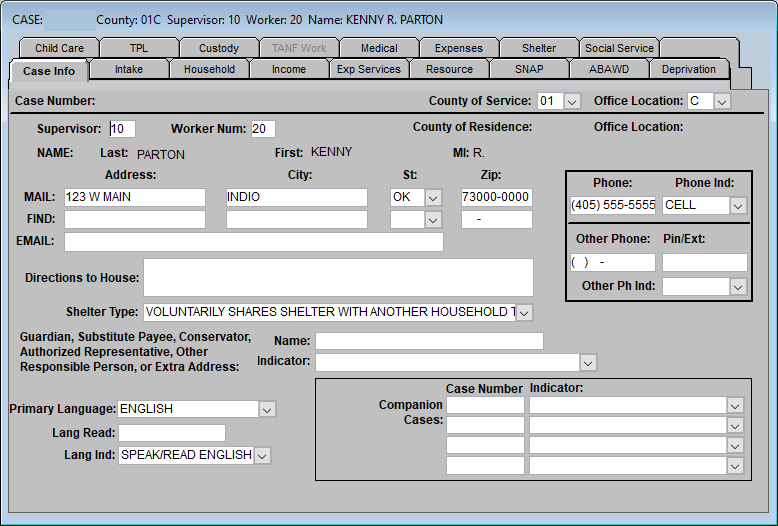
Case Info Tab
Enter mailing address and phone number as well as email if applicable. Enter shelter type as well as the primary language and language indicator.
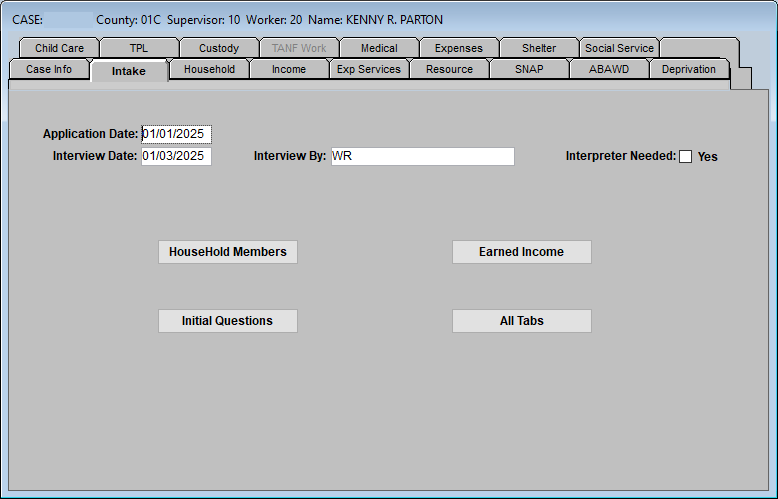
Intake Tab
Enter application and interview date and enter your name in the “Interview By” field.
Intake Tab – Household Members
Enter information regarding SSN verification, educational level, and residence and receipt of Tribal TANF information.
Intake Tab – Initial Questions
Review Initial Questions and answer as applicable.
Intake Tab – Earned Income
Enter any employment information if applicable.
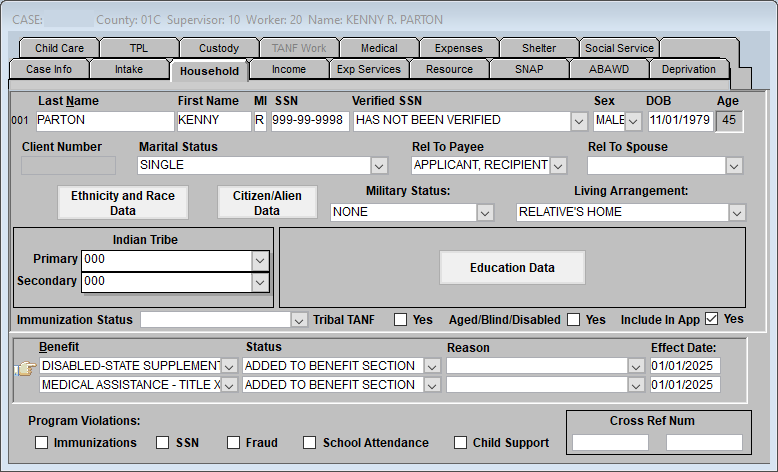
Household Tab
Enter and confirm information regarding the household member:
- Name, SSN, Sex, and Date of Birth
- Marital Status
- Click on Ethnicity and Race Data box and confirm
- Click on Citizenship/Alien Data and enter Identity and Citizenship verification
- Enter Military Status and Living Arrangement
Add the individual to the benefits:
Disabled – State Supplemental – ADDED TO BENEFIT SECTION
Medical Assistance – Title XIX – ADDED TO BENEFIT SECTION
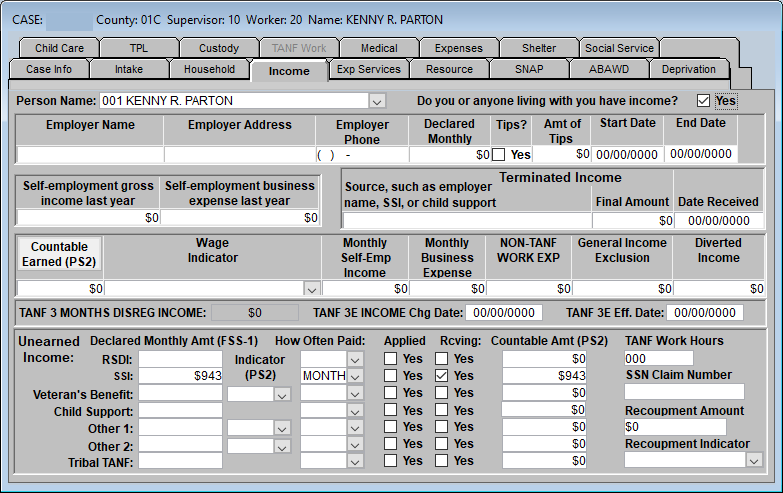
Income Tab
Enter income formation for applicant. In this example, $943 is entered for SSI amount.
Resource Tab
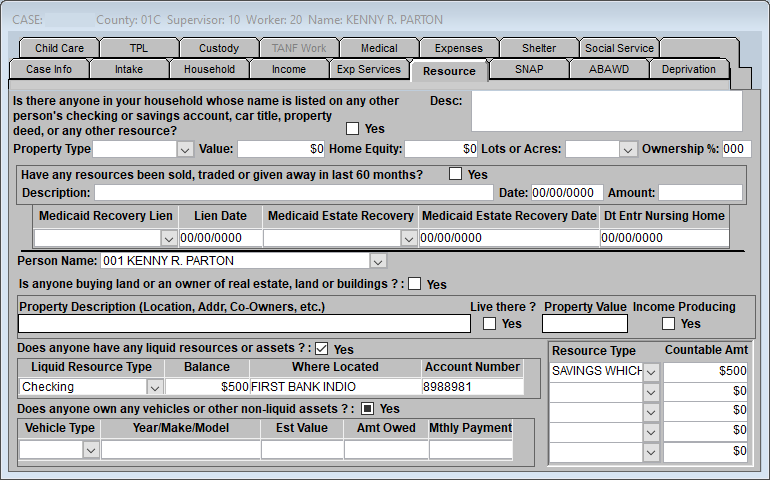
Enter information regarding bank accounts and vehicles. Amount of the bank account and any value of vehicles that are not exempt are entered in the Resource Type field and Countable Amount field.
Third Party Liability (TPL) TAB
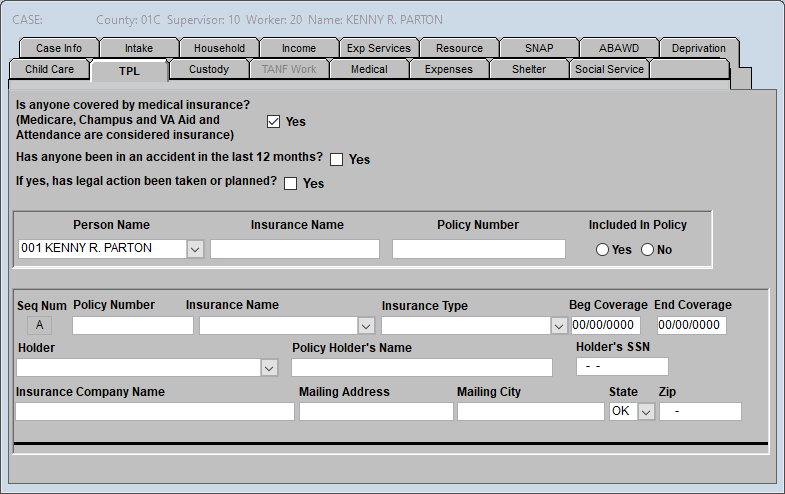
Enter any information related to other insurance coverage that the individual has.
NOTE: Do not enter Medicare Parts A, B, or D in the tab.
Medical TAB
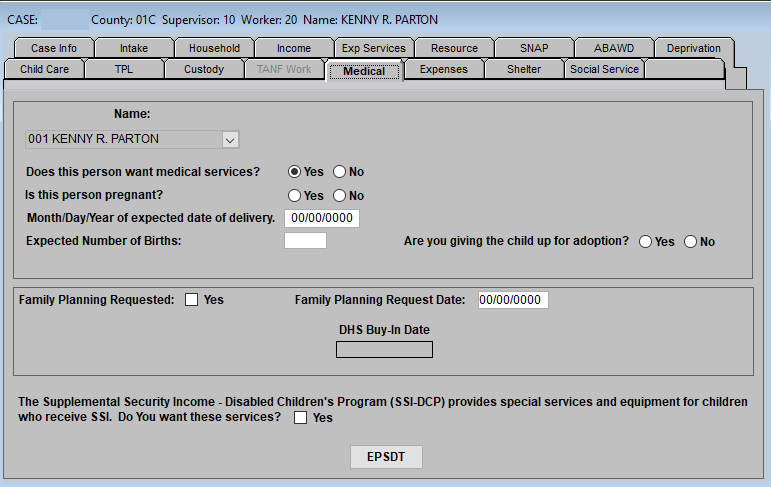
Enter information connected to the medical request as well as pregnancy information if applicable. Any requests for Family Planning or SSI-DCP should be noted here.
Financial Assistance Tab
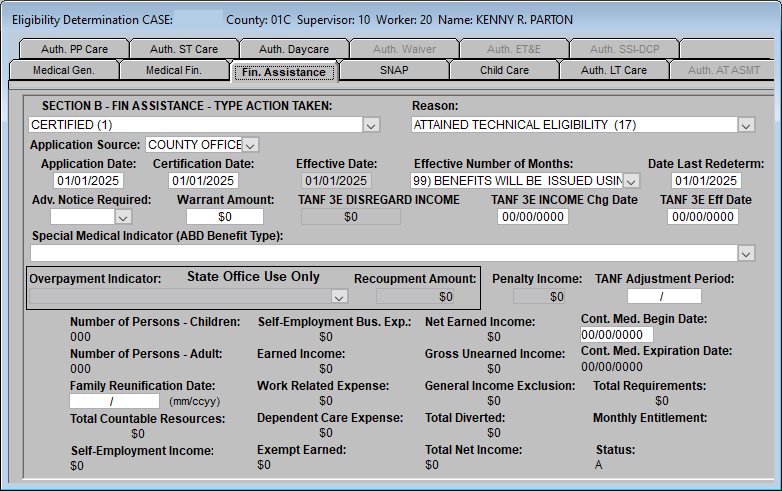
The SSP is certified by entering in FACS the following:
- Type Action Taken – CERTIFIED
- Reason – Attained Technical Eligibility
- Application Source – County Office
- Certification Date – Enter appropriate cert date (first of the month)
- Effective Date – Re-enter certification date
- Effective No. of months – 99
Save the Case and check GB screens.
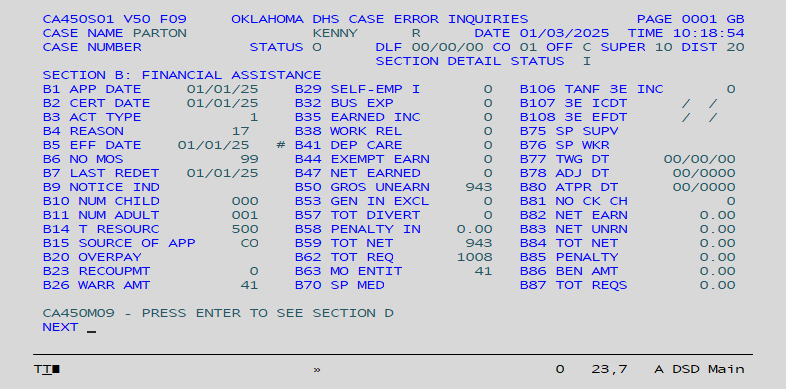
If the screen is correct, push case using Supervisor Review.
NOTE: The medical will be certified automatically when the SSP (Money Payment) B section is certified. If the client requests the medical go back three months, first certify the medical section (D section) first and push the case. Then, if it clears with no edits; refresh the case and certify the SSP (B section).
Comments or Suggestions?
We want Quest to be your source for important information that you need to succeed at in your work but we need your help:
Was this article helpful? Was it missing something you needed to get the job done?
Tell us what you think, what you know about this article. What are we doing well, and what we could do better.
All fields are required.