The following is an example of retro-certifying a State Supplemental Payment (SSP) benefit case for an application date that is more than 2 months prior to the current month. This is the process to use when the client had been waiting for a disability decision (a hanging D case).
**Note: If the client had previously been denied by SSA, you would not certify the State Supplemental Payment for past months. SSP cannot be given for past months if the individual was previously denied. The individual would need to re-apply for SSP**
Patsy Cline applied for medical and SSP in the local DHS office, September 26, 2016. She had previously applied for Social Security earlier in the month. In February 2017, Patsy Cline notified her worker that she received her approval letter, and an interview was conducted on March 1, 2017.
In this example, Patsy did not start receiving Supplemental Security Income (SSI) until the current month (March 2017). For this reason, the SSI fields on the Income Tab in Interview Notebook are left blank, and the SSI income is added in the final Unfinished Issuance sequence.

On the Fin. Assistance Tab in Eligibility Notebook in FACS:
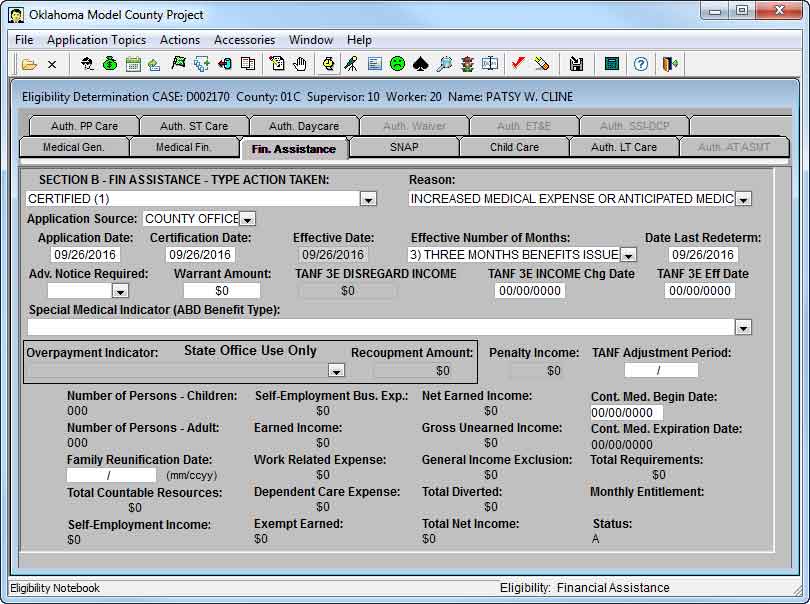
- Type Action Taken – CERTIFIED
- Reason – INCREASED MEDICAL EXPENSE OR ANTICIPATED MEDICAL EXPENSE (20)
- Application Source – COUNTY OFFICE
- Certification Date – ENTER APPROPRIATE CERTIFICATION DATE
- Effective No. of Months – 3) THREE MONTHS BENEFIT
- In this example, this will retro-cert SSP for (Sept, Oct, & Nov 2016)
- Date Last Redeterm – RE-ENTER CERTIFICATION DATE
- Adv. Notice Required – LEAVE BLANK
On the FACS Menu Bar:
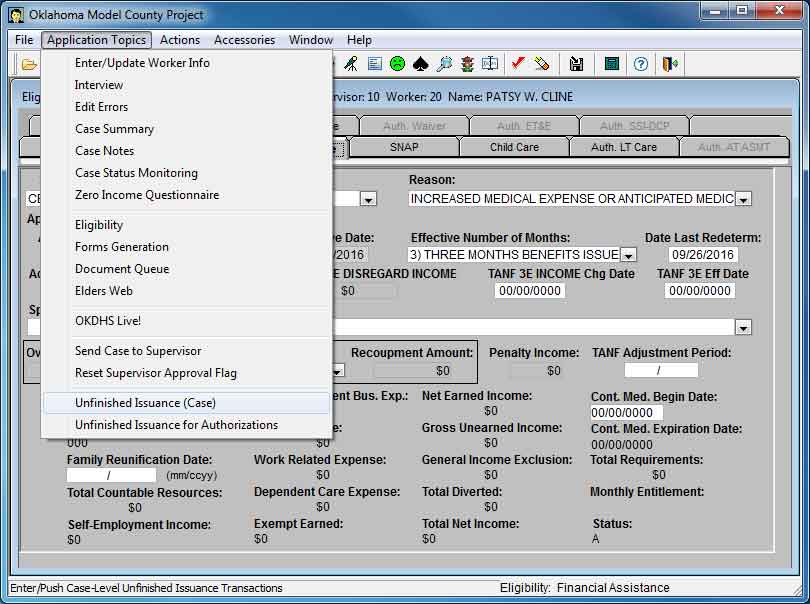
- Click Application Topics
- (Scroll Down and Select Unfinished Issuance (Case)
On the dialogue box that appears (There are no Unfinished Issuance entries for this case. Do you want to start one?)
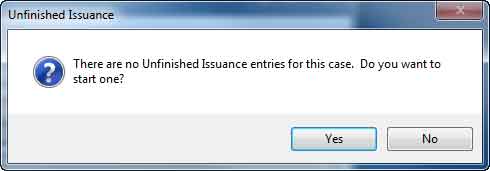
- Click Yes
On the dialogue box that appears (This case does not have supervisor approval. You will not be able to send Unfinished Issuance Transactions to PS2 until case has supervisor approval)
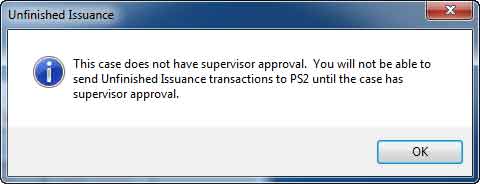
- Click OK
On the Unfinished Issuance box:

- B Action Type – CHANGE OF INFORMATION
- Effect Date – The Date entered is based on information entered in the Finance Tab, Number (1-3) from the “Number of Months” block added to the Month in the “Effective Date” block.
- Num Mos – 2)Two Months
- In this example, this will retro-cert SSP for (Dec 2016 & Jan 2017)
- Notice Ind – CLICK TWICE FOR “NO”
- Click “Save” button.
- Click “Add Seq” button.
On the Unfinished Issuance box (Second Sequence):
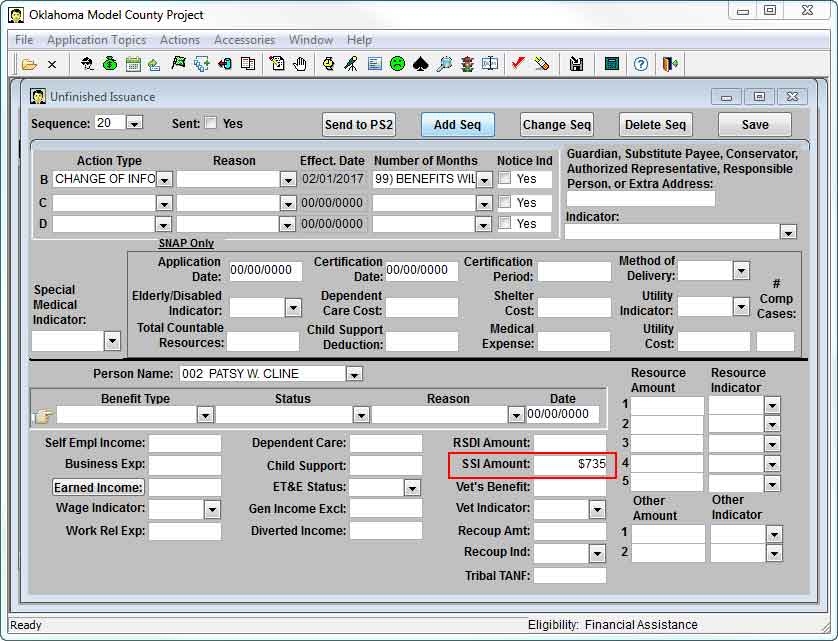
- B Action Type – CHANGE OF INFORMATION
- Effect Date – The Date entered is based on what was entered in the Unfinished Issuance Sequence, Number (1-3) from the “Number of Months” block added to the Month in the “Effective Date” block.
- Num Mos – 99
- Notice Ind – CLICK TWICE FOR “NO”
- SSI Amount – Enter Current amount of Monthly SSI Income
- Click “Save” button.
- Click on the “Red X” to close.
On the Medical Fin. Tab in Eligibility Notebook:

- Medical Application Reason – DISABILITY TO BE ESTABLISHED BY SSA OR TEFRA
- Medical Application Source – CO-COUNTY OFFICE
**Coding the Medical App Reason with “Disability to be Established by SSA or TEFRA” will tell FACS/IMS to base timeliness on when SDX or BEN were updated to show approval, rather than the case’s application date**
On the FACS Taskbar,
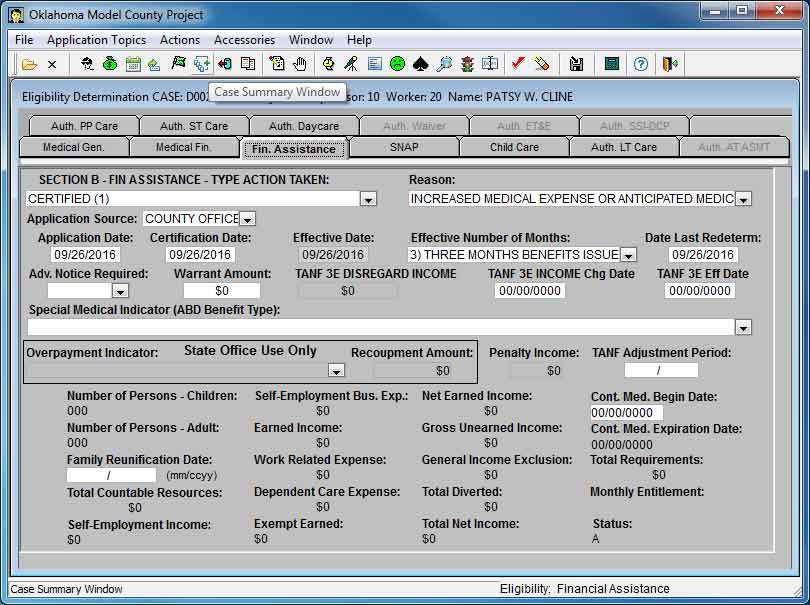
- Click Case Summary Window icon.
Check screen to make sure information is accurate:

- Medical Indicator – SELECT ELIGIBLE
On the FACS Toolbar:
- Click on “Save” icon.
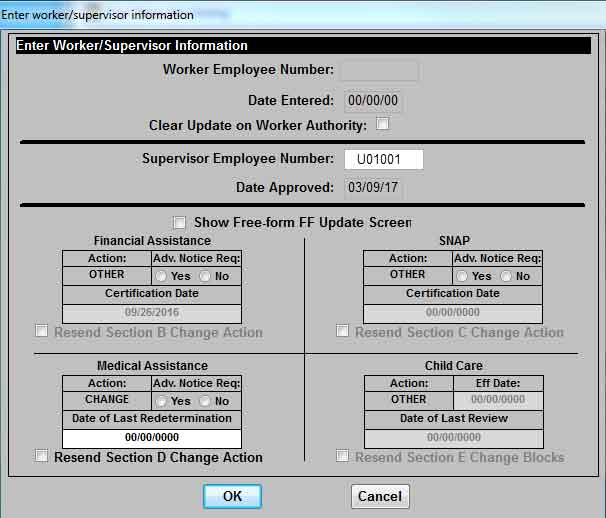
Worker Employee Number will Autofill
- Click “OK”
**Note: Do NOT check the box “Clear Update on Worker Authority”**
On the FACS Toolbar:
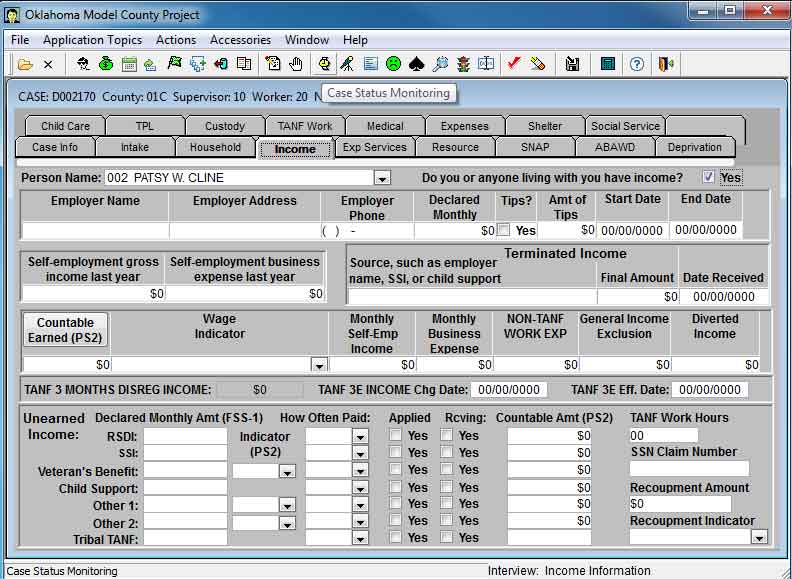
- Click “Case Monitoring Status” button (gold watch)
- Click “Supervisor Reviewed” button
On the dialogue box that appears (Update PS2 on the case that is open in the Interview Notebook? Case # D######)?
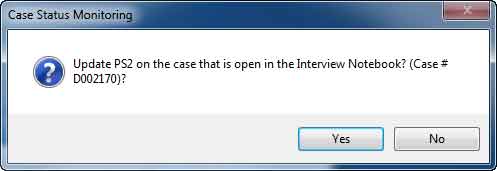
- Click “Yes”
On the FACS Toolbar:
- Click on “Save” icon.
Supervisor Employee Number will Autofill
- Click “OK”
On the dialogue box that appears (No Edit Errors Detected)
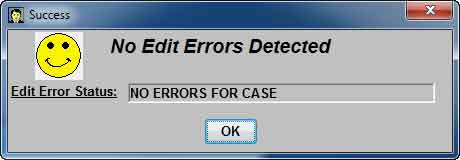
- Click “OK”
Check BN screen in IMS to make sure 3 months benefits have issued.
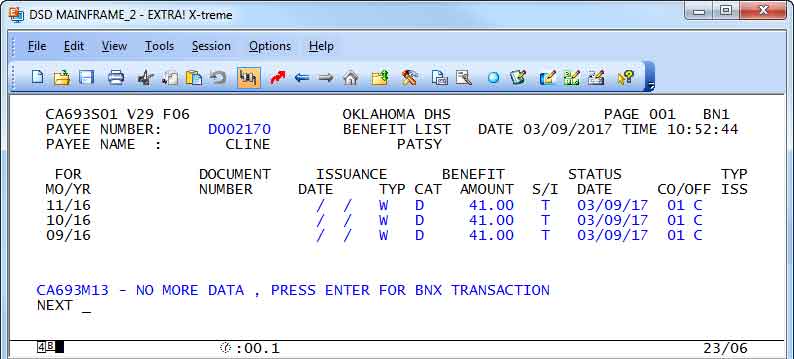
On the FACS Menu Bar:
- Click on “Application Topics”
- (Scroll Down and Select Unfinished Issuance (Case)
- Click “Send to PS2” button.
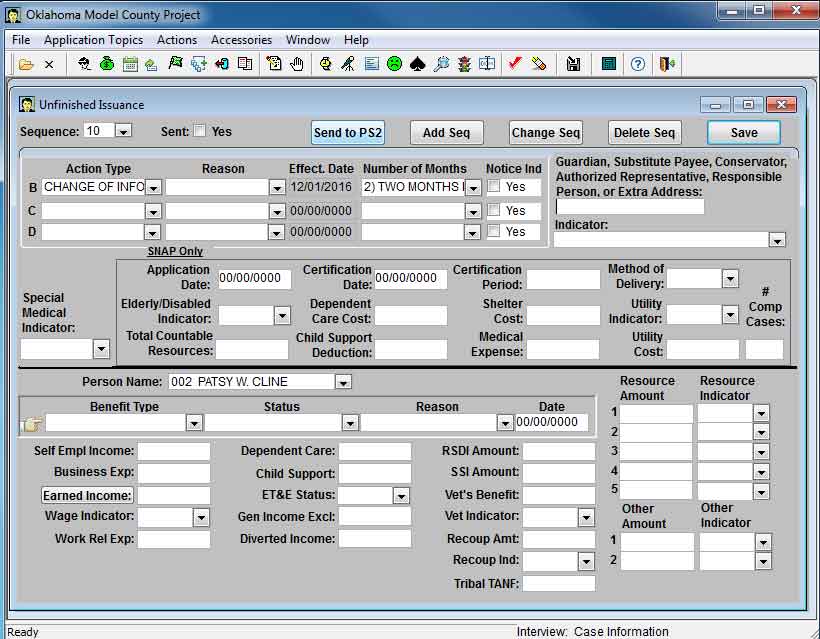
- Click on “Save” icon.
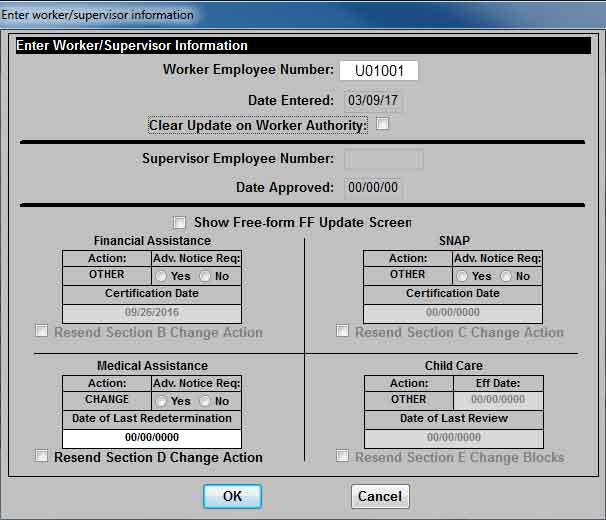
Worker Employee Number will Autofill
- Click “OK”
On the dialogue box that appears (No Edit Errors Detected)
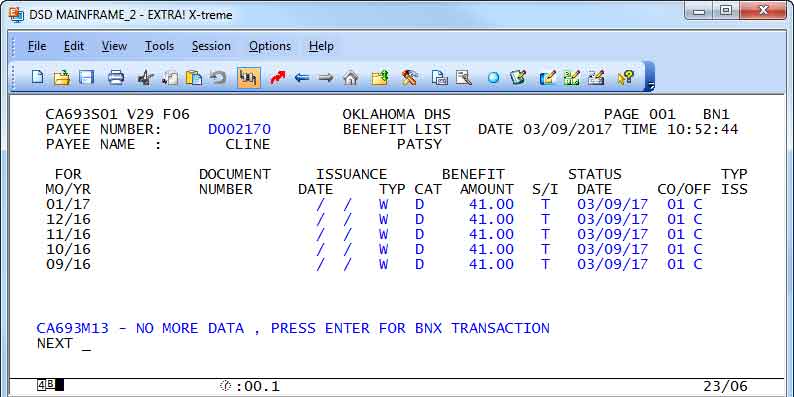
- Click “OK”
Check BN screen in IMS to make sure 5 months benefits have issued.

- Click on next “Sequence in the drop down menu”
- Click “Send to PS2” button.
- Click on “Save” icon.
Worker Employee Number will Autofill
- Click “OK”
On the Dialogue Box “No Edit Errors Detected”
- Click “OK”
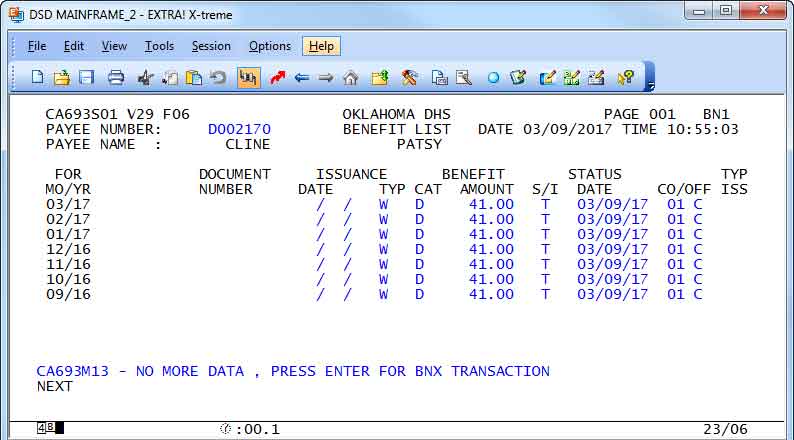
Check BN screen in IMS to make sure all months of benefits have issued.
Comments or Suggestions?
We want Quest to be your source for important information that you need to succeed at in your work but we need your help:
Was this article helpful? Was it missing something you needed to get the job done?
Tell us what you think, what you know about this article. What are we doing well, and what we could do better.
All fields are required.