The TR transaction can be used to transfer a case to another county or office; reassign it to another supervisor or worker, and/or make address changes without going through the editing process.
To View the TR Transaction Screen
- Login to IMS.
- Clear the screen.
- Type TR (space) and the case number. TR H123456
- Press Enter.

To transfer case to another county office, enter both the county and office number and letter for the new location. Enter both the worker and supervisor number.
Complete the new address fields.
Enter your U-Number for both the worker and supervisor employee number and enter the date in MM/DD/YY format.
Press Enter.
If only the address is being changed, you can skip the county office fields to tab down and start at A540 Extra Address or A542. Be sure to enter the indicator A541 if there is an extra line of address.
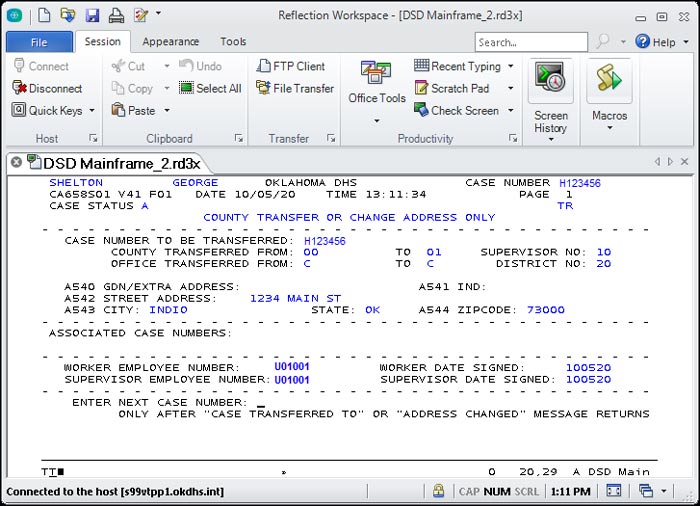
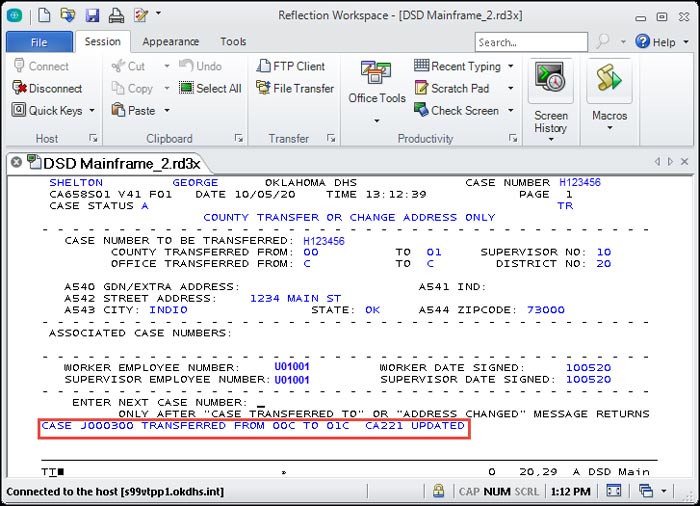
A message will display that the case has been transferred. If only the address is changed the message will display that the address has been updated.
Comments or Suggestions?
We want Quest to be your source for important information that you need to succeed at in your work but we need your help:
Was this article helpful? Was it missing something you needed to get the job done?
Tell us what you think, what you know about this article. What are we doing well, and what we could do better.
All fields are required.