The Unfinished Issuance process allows staff to code changes for the month or months following the initial certification month. Most of the time there would only be one line of unfinished issuance. For example, there is terminated income paid in the month of application that would need to be included with the total income and then removed for the following month. Unfinished issuance can also be used for changes to occur in the next month after certification.
Sometimes the case will require additional lines of unfinished issuance. Consider the example:
Joe applied for SNAP benefits on 4-25 and was interviewed on May 5th.
He lost his job at Indio Lumber on April 18th. Joe was paid bi-weekly on Fridays. He received checks from Indio Lumber on 4-4 ($350), 4-18 ($400), and 5-2 ($275). The 5-2 check was his last and final check.
Joe started a new job at Mega-Mart on April 21st and is paid bi-weekly on Fridays. His first check from Mega-Mart will be received on 5-9 ($290) which the worker verified by calling the employer during the interview. (The 5-9 check was for a full pay period and is representative.)
All coding in FACS should be completed for each tab that is necessary for a SNAP application.
- Case Info
- Intake
- Household
- Income
- Exp. Services
- Resources
- ABAWD
- Expenses
- Shelter
- Social Services
On the Income tab the information regarding the former employer is entered – Employer name, address, and phone number and the start and end date. Then hit insert on the keyboard to obtain a second line to enter the information for the new job.
The terminated income information is entered – Income Source, Final Amount, and date of last paycheck.
Countable Income (MICAL) is coded as actual income for the initial month of April. In this example $750.
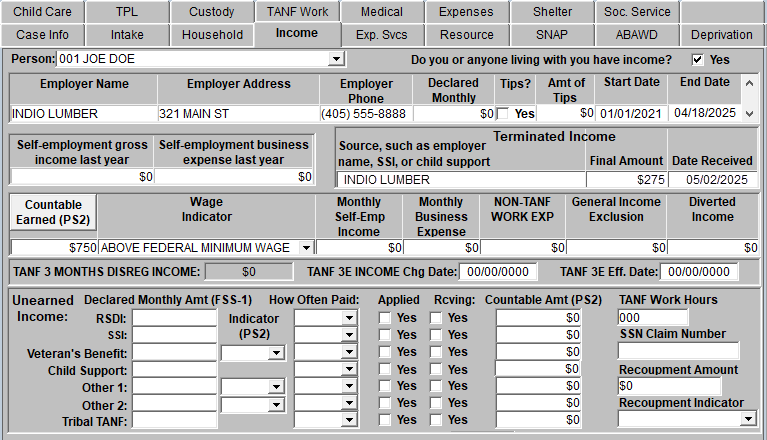
Coding the income for the following months of May and June will be in the unfinished issuance window. However, it is always a good idea to calculate and determine the income before getting to that step.
For May we have the last check from the former employer (Indio Lumber) as well as two anticipated checks from the new employer (Mega-Mart). We will need to enter these amounts for the month of May.
May Income $275 + $290 + $290 = $855
For June we will use anticipated income as the only income will be from the new job paid bi-weekly in the amount of $290.
June Income $290 times $2.15 = $623.50
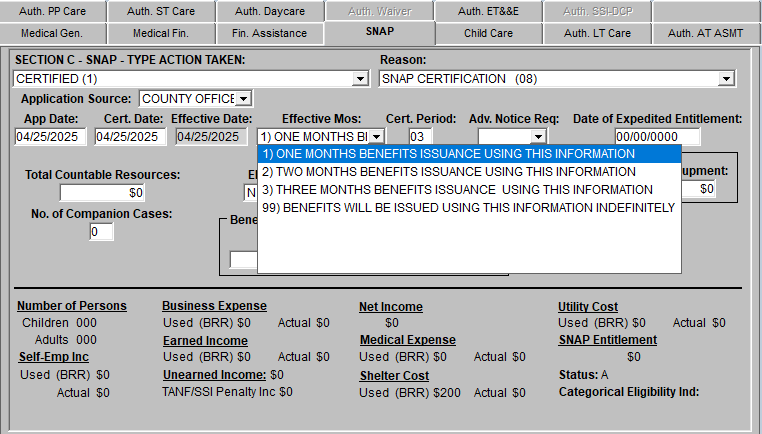
After all the tabs are completed for the Interview Notebook, complete all tabs for the Eligibility Notebook. In this example, certify the case in the SNAP Tab. For this scenario we would enter ‘One Month’s Benefits Issuance ‘ into the Effective Months block.
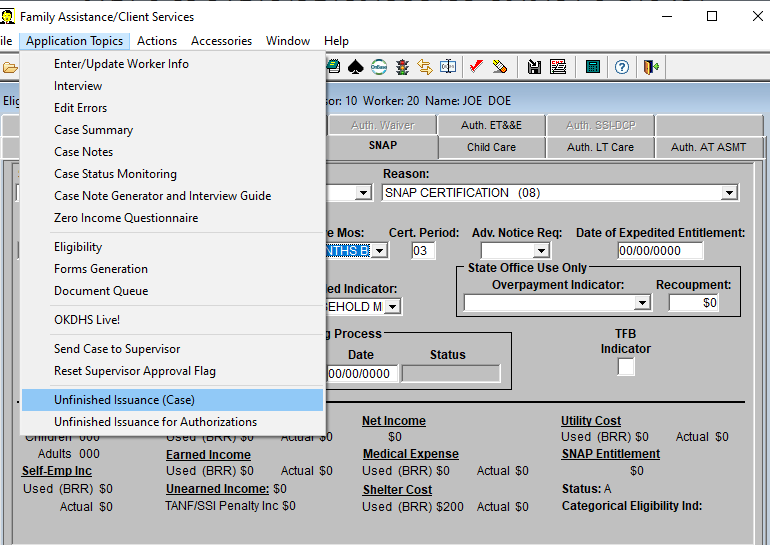
On the menu bar, click Applications Topics and select Unfinished Issuance (Case).
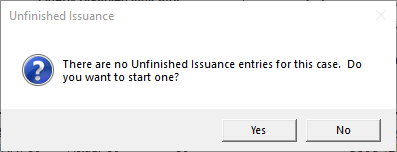
Click ‘Yes’ in the Unfinished Issuance dialogue box.
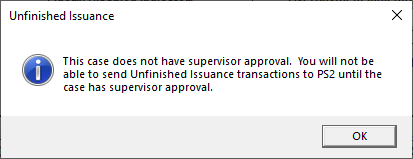
Click ‘OK’ in the Unfinished Issuance message box for Supervisor Review.
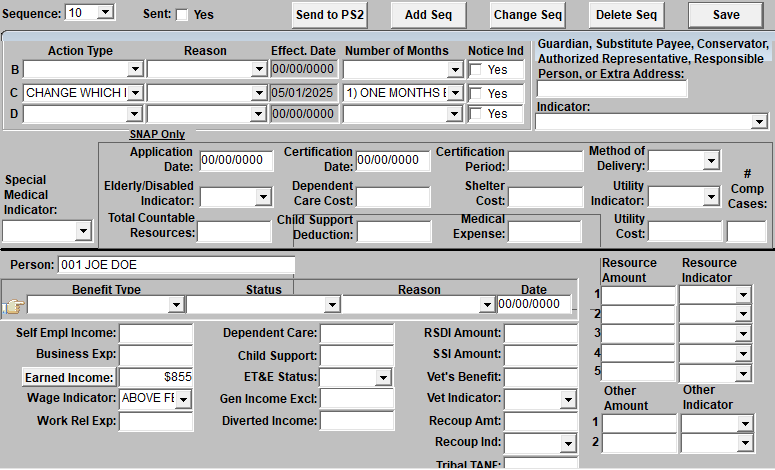
On the Unfinished Issuance screen, under the Action Type field on the SNAP line (C) a change is made. The effective date is grayed out, so no entry is needed. The computer will know the change is for the next month which is 5/1/2025 for this example. Since there will be another change for next month – (1) Month is selected for Number of Months.
If you are not between first and second deadline, the Notice Ind field does not need to be addressed. If you are between the deadlines, you must click in and out of the Notice Ind field.
The only change for May in this example is the income for the month. Confirm you have the correct person selected and then click on the Earned Income button on the Unfinished Issuance window. The final pay of $275 received on 5-2 from Indio Lumber is entered as actual income and calculated. Then click the Next Employer Button, select actual income, bi-weekly pay frequency, and enter the paystubs received from Mega-Mart on 5-9 ($290) and 5-23 ($290) and calculate the income. May’s total income from both jobs is $855. Click on the update FACS button and then entered the appropriate selection in Wage Indicator field.
Look at the Sequence field in upper left of the unfinished issuance window. The computer will show May’s changes as sequence 10.
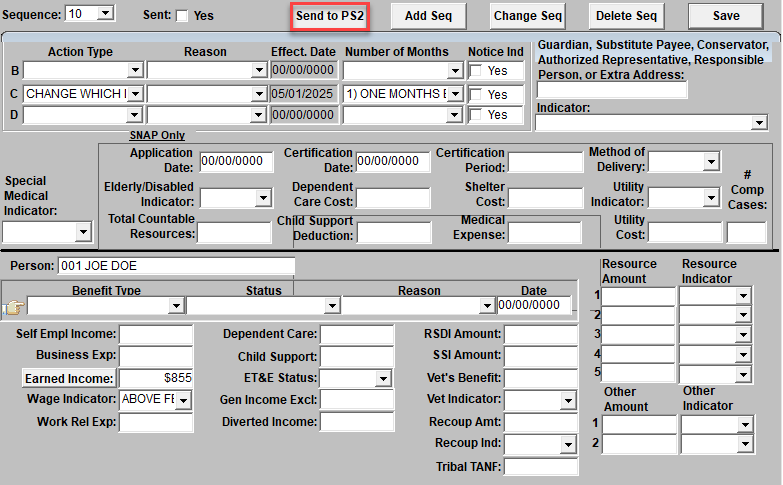
Next click the “Add Seq” button at the top of the Unfinished Issuance window.
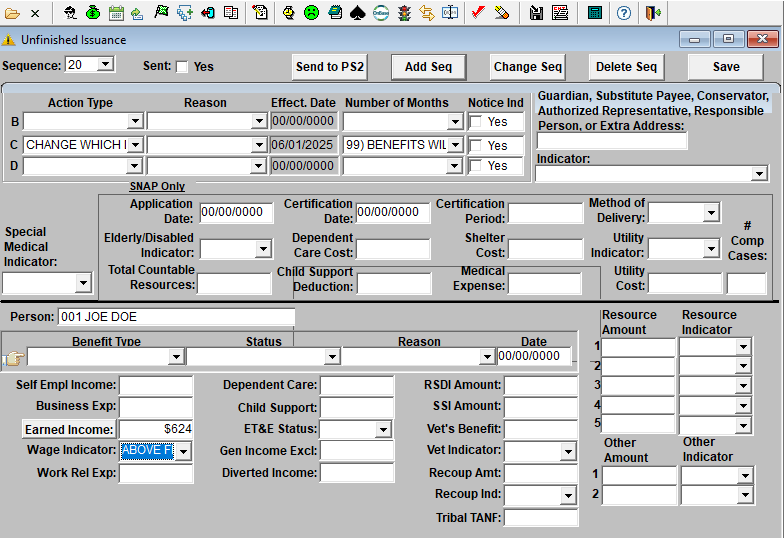
This creates a blank screen to enter the change information for June. The computer will show the June information as sequence 20.
Under the Action Type field on the SNAP line (C), enter a change action. Again the effective date is grayed out, so no entry is needed. The computer will know the change is for 6/1/2025 in this example. Since there will be no more changes after June – (99) is selected for Number of Months.
Remember the Notice Ind field is only addressed if you are between the deadlines.
The only change for June in this example is the income for the month. Confirm you have the correct person selected and then click on the Earned Income button on the Unfinished Issuance window. Using the anticipated income complete the MICAL. June’s anticipated income from Mega-Mart is $624. Click on the update FACS button and then entered the appropriate selection in Wage Indicator field.
Be sure to click the SAVE button on the right side of the Unfinished Issuance window. Then close the Unfinished Issuance window.
Save the Case and clear any edits. You will receive a reminder that Unfinished Issuance Must be Addressed. Check the GC screen to make sure all information is correct for the first months of benefits. Then, Push the case through supervisory review.
*Important: When using the Unfished Issuance window, you must go through supervisory review using the Gold Watch icon on the FACS toolbar. You cannot clear the update on Worker Authority.
Review EC and BN screen to ensure the first month of benefits have issued.
Go back to the Unfinished Issuance screen by clicking Application Topics and selecting Unfinished Issuance (Case). Click “Send to PS2” button for the first Unfinished Issuance.
You will receive another reminder that Unfinished Issuance Must be Addressed. Review the EC and BN screen to make sure all information is correct for the second (May) months of benefits.
Now go back to the Unfinished Issuance window. On Sequence 10, there will be a check mark in the Sent Yes block indicating this information has gone to IMS. Click the sequence drop down arrow and select 20. This is the June information. Click “Send to PS2” button to submit the change information for June.
Review EC to ensure the third month’s (June) changes are there and the section is in Issuing Status.
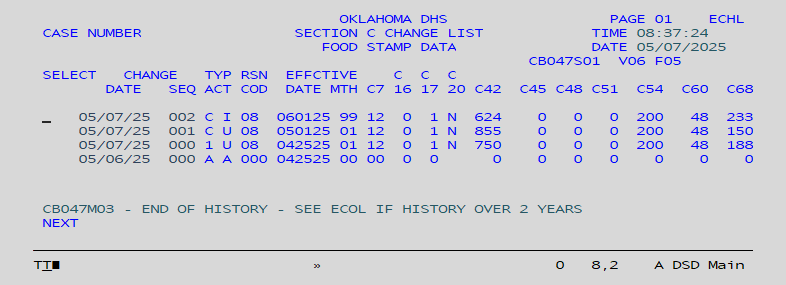
ECHL which shows all actions for the SNAP case.
Comments or Suggestions?
We want Quest to be your source for important information that you need to succeed at in your work but we need your help:
Was this article helpful? Was it missing something you needed to get the job done?
Tell us what you think, what you know about this article. What are we doing well, and what we could do better.
All fields are required.