When a household has been determined ineligible for child care subsidy, the worker DENIES the child care request in FACS on both the Child Care Tab and Auth Daycare Tab in Eligibility Notebook. This ensures that a notice is sent to the client notifying them of the denial of their child care application.
The following are instructions on how to deny a child care application in FACS.
On the Child Care tab in the Eligibility Notebook:
(Do not update any of the fields that are grayed out in visual guide below).
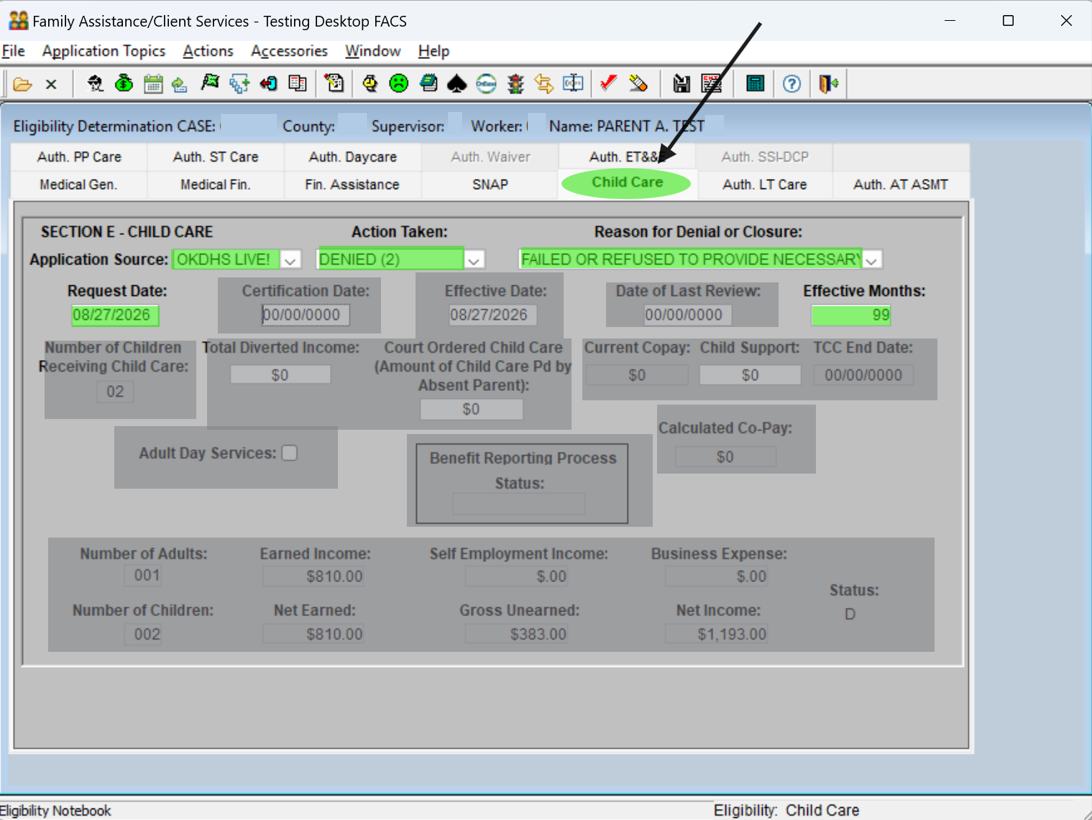
- Update the following fields:
- Application Source: Select appropriate choice
- Action Taken=DENIED
- Reason for Denial or Closure: Enter appropriate denial reason
- Request Date: Date of Child Care Application
- Effective Months: Enter 99
On the Auth. Daycare Tab in Eligibility Notebook:
(Do not update any of the fields that are grayed out in visual guide below).
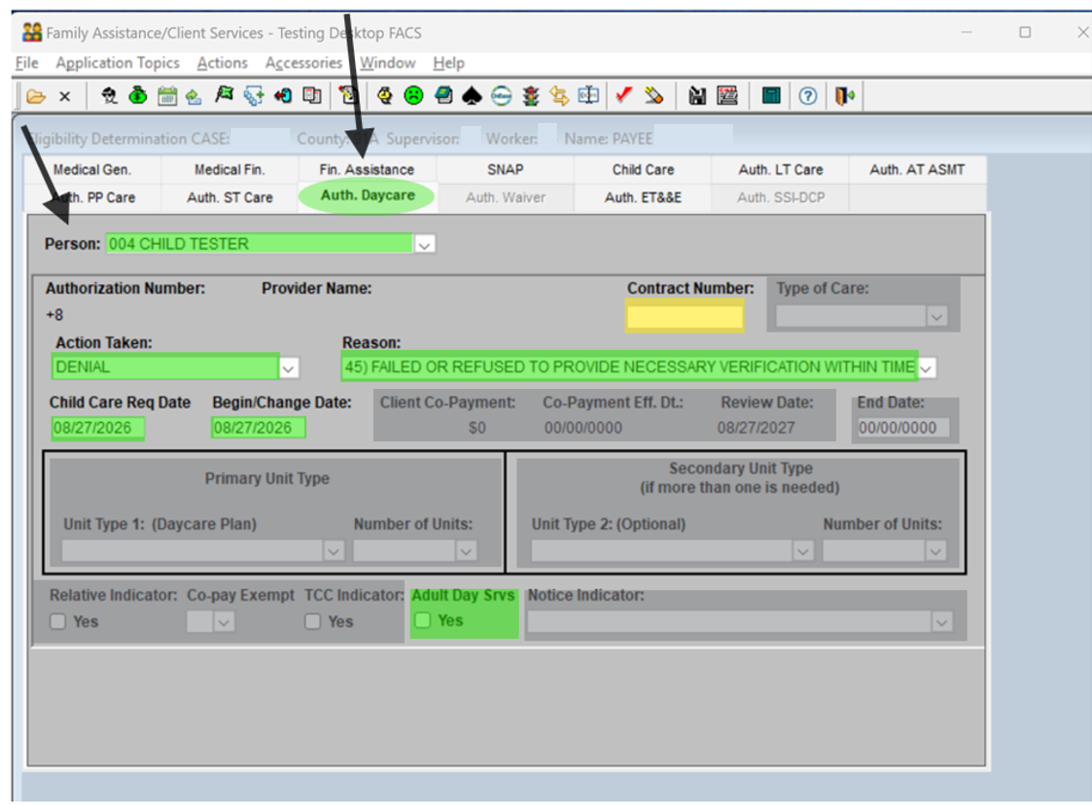
Select “Person Number” of child. (You will need to repeat this process for each child for whom child care was requested) . **This is not necessary for any children in the household that were not intended to enter child care. **
Update the following fields:
- Action Taken: DENIAL
- Reason: Select Appropriate Reason
- Child Care Req Date: will be application date
- Begin/Change Date: will be application date
- Adult Day Srvs: You must “check” and then “uncheck” the box (the box will show empty when saving).
The Contract# field is OPTIONAL. If the contract number is known, it can be entered into the “Contract Number” field so that a computer-generated notice issues to both the applicant and the child care provider. When the contract number is unknown, a notice is generated to the applicant only. (The ‘type of care’ field will auto-populate by system if a contract# is entered).
SAVE CASE AND SEND TO SUPERVISOR.
NOTE: Be careful not to K/A adults on the case. If an adult was inadvertently K/A but has since been corrected and is now showing K/O, the edits may still indicate that a denial authorization is needed for the adult. (This is not correct). If the edits will not clear, please submit a REMEDY ticket for assistance, as an over-ride may be needed.
Comments or Suggestions?
We want Quest to be your source for important information that you need to succeed at in your work but we need your help:
Was this article helpful? Was it missing something you needed to get the job done?
Tell us what you think, what you know about this article. What are we doing well, and what we could do better.
All fields are required.