Follow these steps to use the ADM-92 form to request verification
- From the FACS Toolbar, click the “Generate Forms” icon.

- Select the “ADM-92” option, and click Generate Forms.

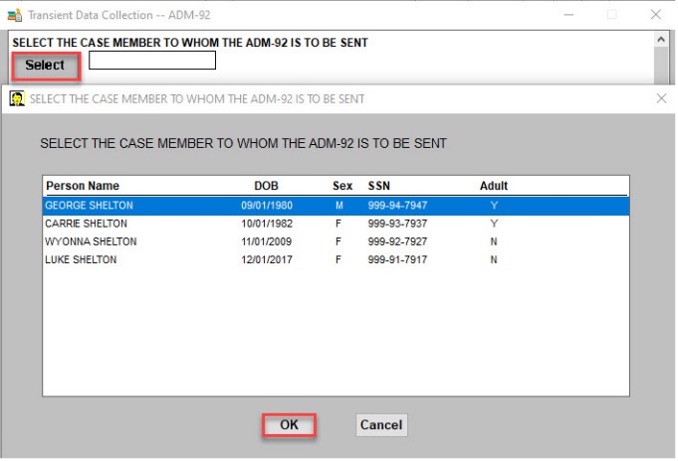
- Click the “Select” button to select the appropriate household member to request verification from, and click OK.
- Click in the check box beneath “PROVIDE PROOF OF ITEM(S) CHECKED ON THE BACK OF THIS FORM.”

- Enter a date in the yellow selected box. The date must be 10 calendar days. The date of request is date zero – count from there.
.
- Enter “SNAP” in the box beneath “YOUR BENEFITS/SERVICES.”
- If you are requesting verification for an application, check the box next to “WILL BE DENIED,” and enter the application date in the “EFFECTIVE” box. Otherwise, check “WILL BE CLOSED” and enter the date of the next effective month.
- Fill in the boxes requesting uploading instructions and agency phone number.

- Check the boxes next to each item that you are requesting verification for, using the text boxes to provide additional instructions to the client.
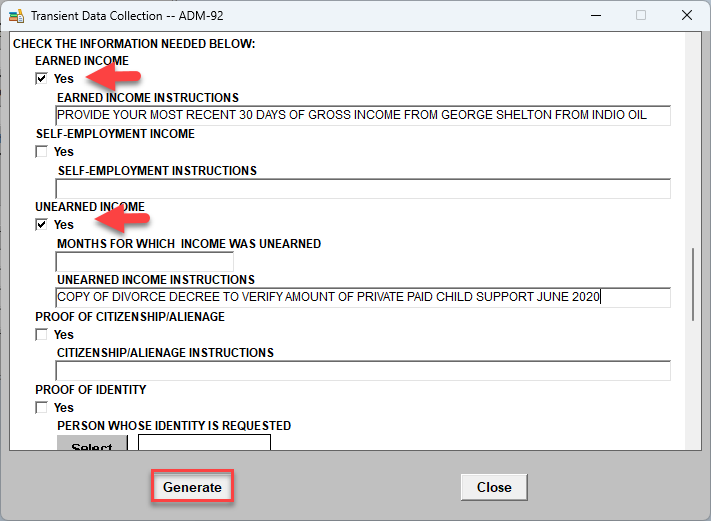
- Click the “OK” button.
- Print the ADM-92 to mail or give to the client, and send a copy to OnBase for the case record.
Was this article helpful?
0
Thanks for your feedback!
Please complete the Comments or Suggestions form below
Comments or Suggestions?
We want Quest to be your source for important information that you need to succeed at in your work but we need your help:
Was this article helpful? Was it missing something you needed to get the job done?
Tell us what you think, what you know about this article. What are we doing well, and what we could do better.
All fields are required.